T
Apr 26, 2026
app barely works even with the paid subscription. tried resetting cameras, wifi, reinstalling the app, still not working. we are canceling subscription and moving to anther service. do not recommend at all

| Version | 3.6.0.579 |
| Content Rating | Everyone |
| Android Required | 9 |
| Updated | Mar 28, 2026 |
| Developer | Roku, Inc. & its affiliates |
| Price | Free |
| Category | House & Home |
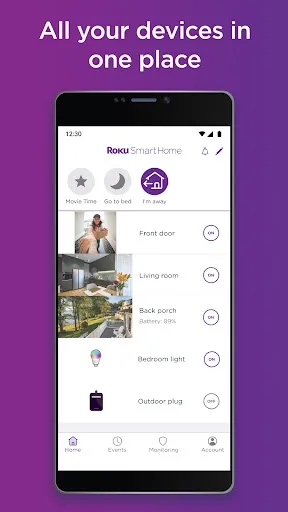
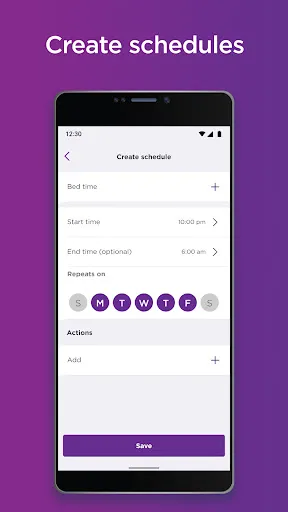
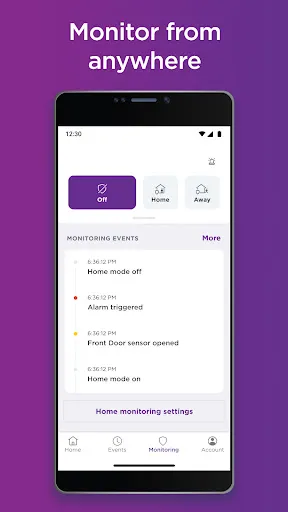
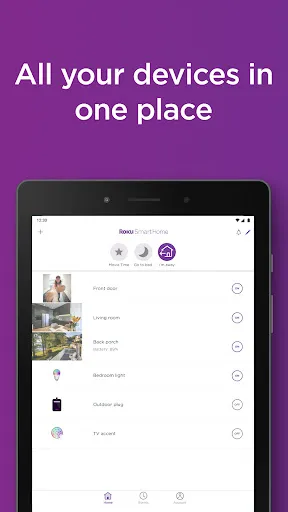
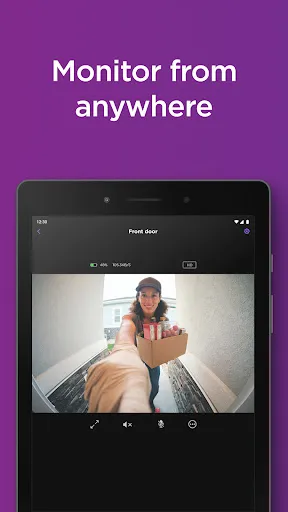
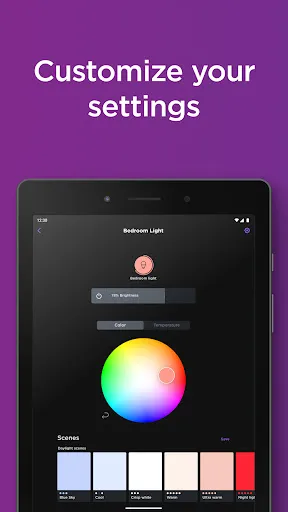
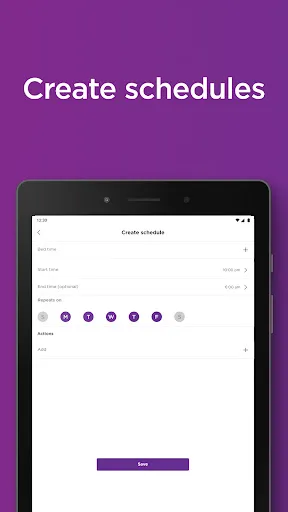
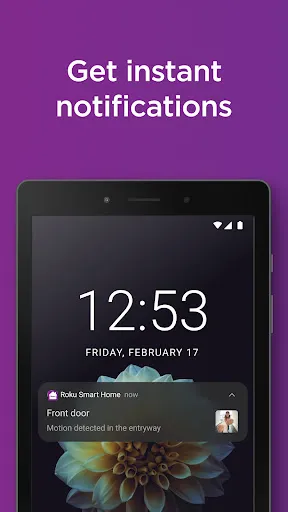
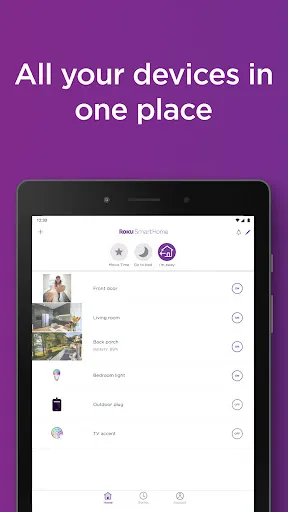
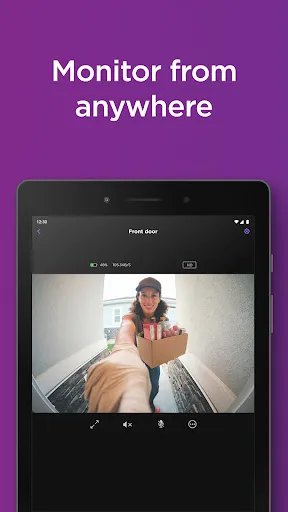
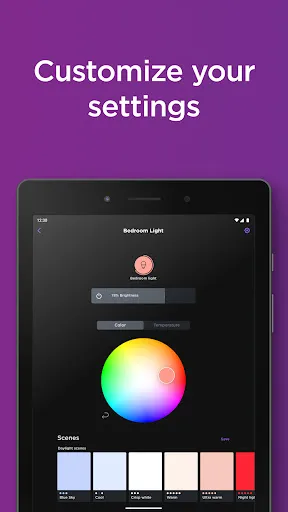
Roku Smart Home is a mobile app in the House & Home category built around household organization and home-related tasks. It may be most helpful to users managing everyday activities around the home. A brief first visit should give users time to find their way around before they explore the finer controls. The confirmed store text is the basis for the option discussion below; anything not described there is left out. The store description points to tools for changing the app itselfearance or presentation of content. A practical first step is to try the central activity before changing notifications, accounts, or optional preferences. What matters most in Roku Smart Home is whether the route to household organization and home-related tasks remains understandable after the first visit. For the right user, the overall use should feel less like learning a new system and more like adding a convenient option to an existing routine.
app barely works even with the paid subscription. tried resetting cameras, wifi, reinstalling the app, still not working. we are canceling subscription and moving to anther service. do not recommend at all
it dont scroll to finish setting uo and wont download on my laotop
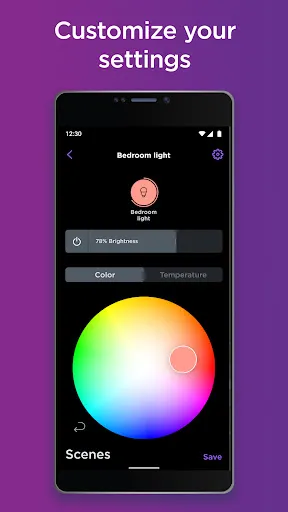
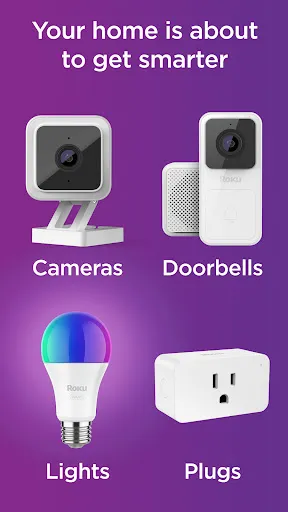
I have five Roku smart light bulbs and will never buy another. The app sucks and won't work half the time. Then the lights (yes all at the same time) randomly go offline and you cannot use them. I've had to delete the lights completely and set up as new light bulbs multiple times. The latest episode, nothing is working so I'm stuck with lights I cannot use. No more Roku for me.
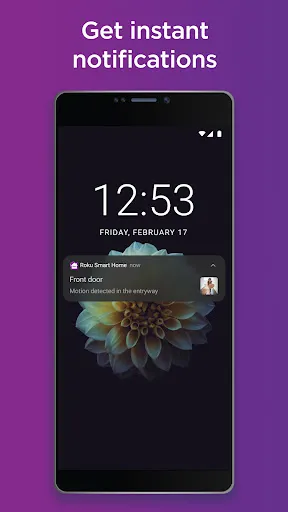
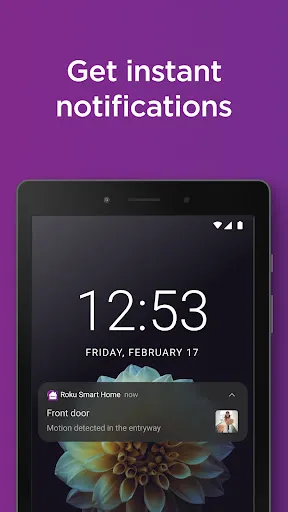
Drains battery very fast. I can't turn it off because I need to receive notifications.
Great Free App
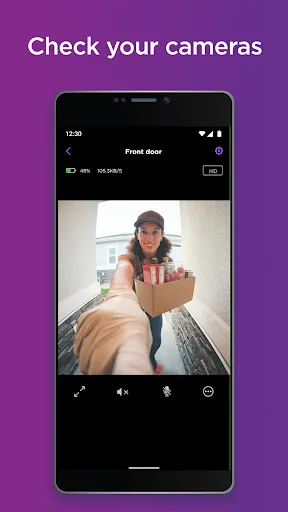
doesn't want to connect to my cameras most of the time
can't connect to the camera help
great
for one the camera has started to lose its night vision in color it flips back and forth to color to black and white. For another no matter how many times you set and save the cool down time and recording length it never saves it. always goes back to one min cool down and 15 second recording. And another thing it signs you out of the app every week just about sometimes multiple times n you have to sign back in. Don't think I will continue my subscription for this camera. Too many issues.
Only works 25 percent of the time. Always says my camera is disconnected even though I can use my wife's iPhone to watch the live feed from the camera. Another issue is the notifications only work half the time for the front door outside camera. Constantly says i need to subscribe in order to record or watch events even though i pay for a premium subscription. Found out that it signs me out of my account but it wont let me press sign out so that i can sign back in, definitely needs improved.